User Guide

First run? Budget about 10 minutes for Getting Started (longer only if you need to install Java). Problems? See FAQ.
Table of Contents
-
Table of Contents
- About CatPals
- Getting Started
- A Quick Tour of the Interface
-
Features
- Viewing help :
help - Adding a cat:
add - Attaching a cat photo:
attach - Listing all cats:
list - Updating a cat profile :
update - Locating cats by name, location, traits or health status :
find - Deleting a cat :
delete - Exporting the cat list :
export - Clearing all entries :
clear - Undo the previous action :
undo - Exiting the program :
exit - Saving the data
- Editing the data file
- Archiving data files
[coming in v2.0]
- Viewing help :
- FAQ
- Known issues
- Command summary
About CatPals
What is CatPals?
CatPals is a desktop app for NUS Cat Café volunteers to manage stray-cat records on campus. It keeps names, locations, traits, health status, and photos all in one place, instead of scattered notes or group chats.
Why is this app needed?
With so many cats spread across campus, details can easily get lost in messages or forgotten over time. CatPals gives volunteers one organised record they can search, update, and export whenever they need to coordinate care.
Who are the target users?
- NUS Cat Café CCA members tracking many campus cats
- People who prefer a desktop tool with keyboard-first workflows
- Anyone comfortable typing short commands (no coding knowledge required)
How do users interact with CatPals?
Type commands in the command box at the top (e.g. add, find, update). The list on the left and detail panel on the right update as you work. Use ↑ / ↓ to change the selected cat. When the app opens, the splash screen asks you to press Space to continue.
What value does CatPals provide?
CatPals offers fast lookup, consistent fields, HTML export, and offline use. It is not a vet system, shelter operations tool, or public registry, it is simply a practical notebook for volunteers.
Where can you find more information?
Visit the CatPals project site for releases, documentation, and team details.
Getting Started
Rough time: About 10 minutes if Java 17+ is already installed. Add roughly 5 to 10 minutes if you need to install Java first. All you need is a normal desktop computer and the steps below, no developer setup required.
1. Install Java 17 or newer
CatPals requires Java 17 or higher. Java is the standard runtime that CatPals runs on — you only need to install it once, and you do not need to configure anything else.
Check what you have:
-
Windows: Start menu, type
cmd, press Enter, then runjava -version -
Mac: press
Cmd + Space, search for Terminal, open it, then runjava -version
You should see a version number of 17 or higher (e.g. 17.0.x). If the command is not recognised or the major version is below 17, install a current JDK:
-
Recommended: Eclipse Temurin 17 (or newer), pick your OS, run the installer, then open a new command window and run
java -versionagain to confirm. - Alternative: Oracle Java downloads
2. Download CatPals and make a folder
- Download the latest
catpals.jarfrom the latest release. - Create a folder (e.g.
CatPalson your Desktop) and move the.jarfile into it.
3. Open a command window in that folder
-
Windows: Press
Win + R, typecmd, press Enter. Then navigate to your folder, e.g.cd C:\Users\YourName\Desktop\CatPals -
Mac / Linux: Open the Terminal app and navigate, e.g.
cd ~/Desktop/CatPals
Use the actual path where your .jar file is saved.
4. Run the app
Type the following command and press Enter:
java -jar catpals.jar
 Note: The file you downloaded should be named
 catpals.jar. If it was saved with a version number in the filename (e.g. catpals-1.4.jar), either rename it to catpals.jar or replace catpals.jar in the command above with the actual filename.
You should see the splash screen first, then press Space to open the main window (tour below).
5. First commands
Try help in the command box. Other quick examples:
-
list— show all cats -
add n/Bowie t/Orange l/Utown h/Vaccinated— add a cat -
delete 3— delete the 3rd cat in the current list -
clear— remove every cat (with confirmation) -
exit— quit
Full syntax is in the Features section.
A Quick Tour of the Interface
CatPals uses a warm, keyboard-friendly layout: commands at the top, list on the left, full profile on the right.
Splash screen
On launch, you will see the welcome screen. Simply press Space to continue.
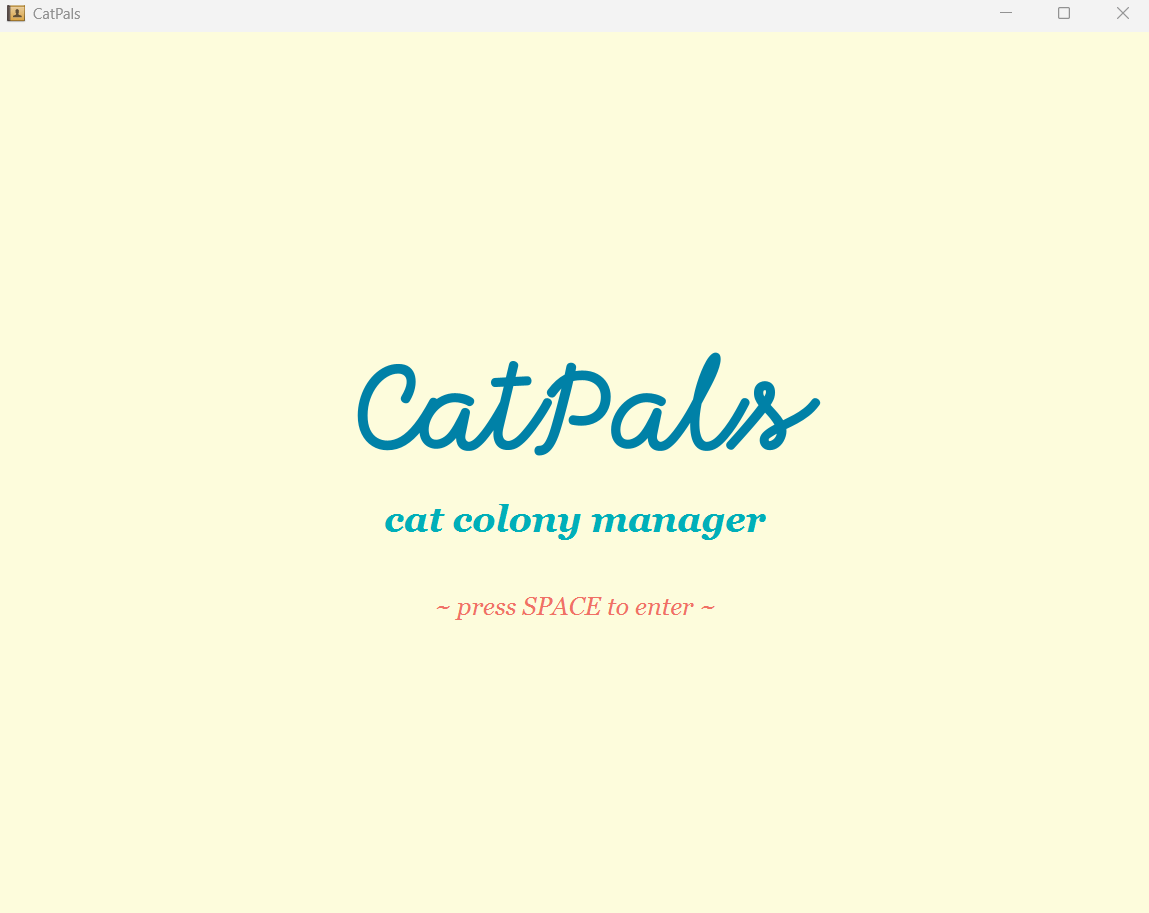
Welcome screen. Simply press Space to open the main window.
Main window
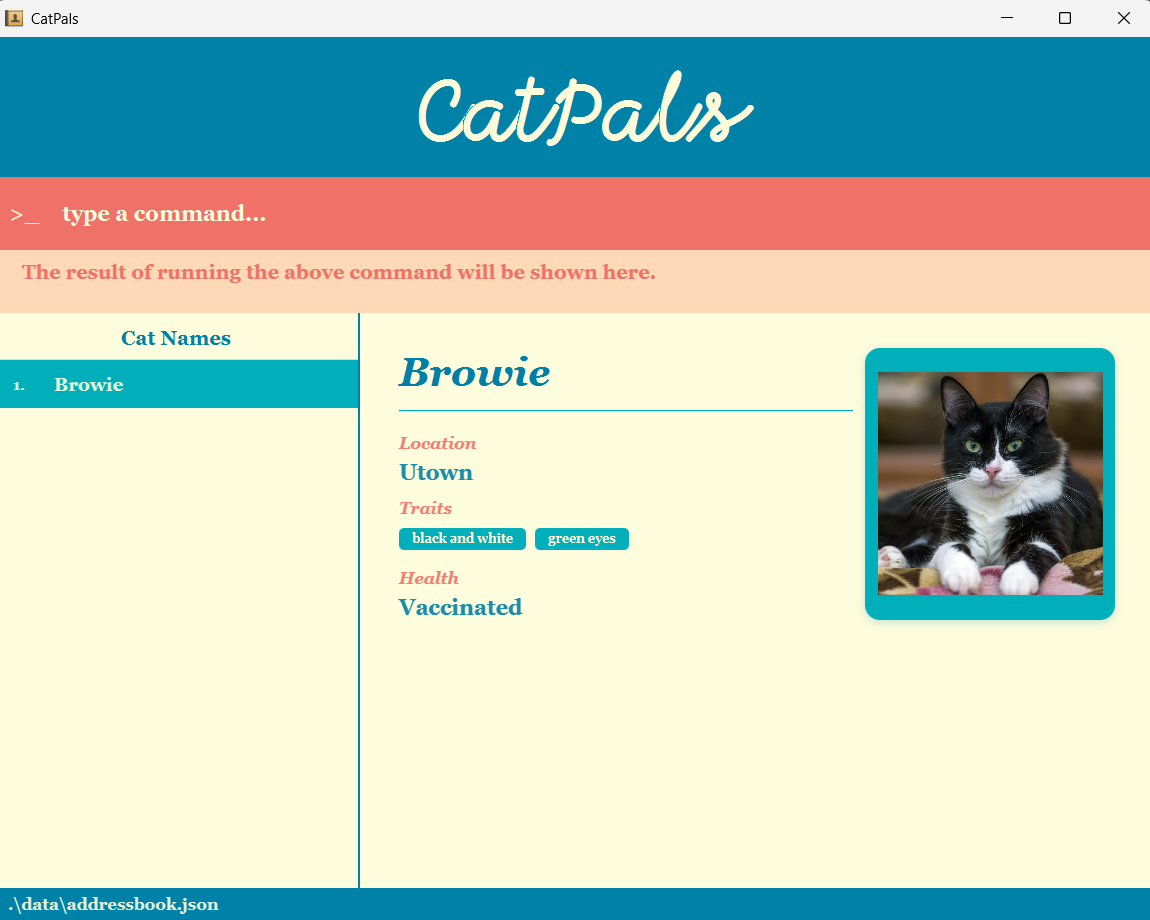
Main window: command row, result line, cat list (left), profile and photo (right), data path (footer).
| Area | What it does |
|---|---|
| Header | App title and branding |
| Command field | Type commands; press Enter to run |
| Result line | Message from the last command (success or error) |
| Cat list (left) | Numbered cats; ↑ / ↓ changes selection |
| Detail panel (right) | Name, location, traits, health, photo or placeholder |
| Footer | Path to your data file (inside the data folder next to the app) |
Navigating the cat list
Use ↑ and ↓ to move the selection (works even when the cursor is in the command box). The detail panel updates automatically. Clicking list rows does not select. Instead, use the arrow keys. You can still scroll the list with the mouse wheel.
Confirmation dialogs
For update, delete, and clear, a dialog will ask you to confirm. Press Enter to confirm or Esc to cancel. No mouse required. See Update and Delete for examples.
Features
Notes about the command format:
- Words in
UPPER_CASEare the parameters to be supplied by the user.
e.g. inadd n/NAME,NAMEis a parameter which can be used asadd n/Snowy. - Items in square brackets are optional.
e.g.n/NAME t/TRAIT [h/HEALTH_STATUS]can be used asn/Snowy t/white h/vaccinatedor asn/Snowy t/white. - Items with
…after them can be used multiple times (>= 1).
e.g.[t/TRAIT]…can be used ast/white,t/white t/smalletc. - Extraneous parameters for commands that do not take in parameters (such as
help,list,exitandclear) will be ignored.
e.g. if the command specifieshelp 123, it will be interpreted ashelp. - If you are using a PDF version of this document, be careful when copying and pasting commands that span multiple lines as space characters surrounding line-breaks may be omitted when copied over to the application.
Viewing help : help
Shows a message explaining how to access the help page.

Format: help
Adding a cat: add
Adds a cat profile to the cat notebook.
Format: add n/NAME t/TRAIT [t/MORE_TRAITS]… l/LOCATION [h/HEALTH_STATUS]
 Tip:
A cat can have up to 3 traits. Duplicate traits (traits with the exact same spelling, regardless of spacing) are not allowed. Health status is optional and defaults to
Tip:
A cat can have up to 3 traits. Duplicate traits (traits with the exact same spelling, regardless of spacing) are not allowed. Health status is optional and defaults to Unknown if not provided.
To attach a photo after adding, use the attach command.
-
n/NAME,t/TRAIT, andl/LOCATIONare required. -
h/HEALTH_STATUSis optional. Common values includeVaccinated,Neutered,Vaccinated and Neutered,Injured, orHealthy. - You can specify up to 3
t/TRAITprefixes, but duplicate traits (same exact spelling) are not allowed.
Examples:
add n/Bowie t/Orange l/Utown h/Vaccinatedadd n/Whiskers t/Fluffy t/Playful l/Science h/Neutered
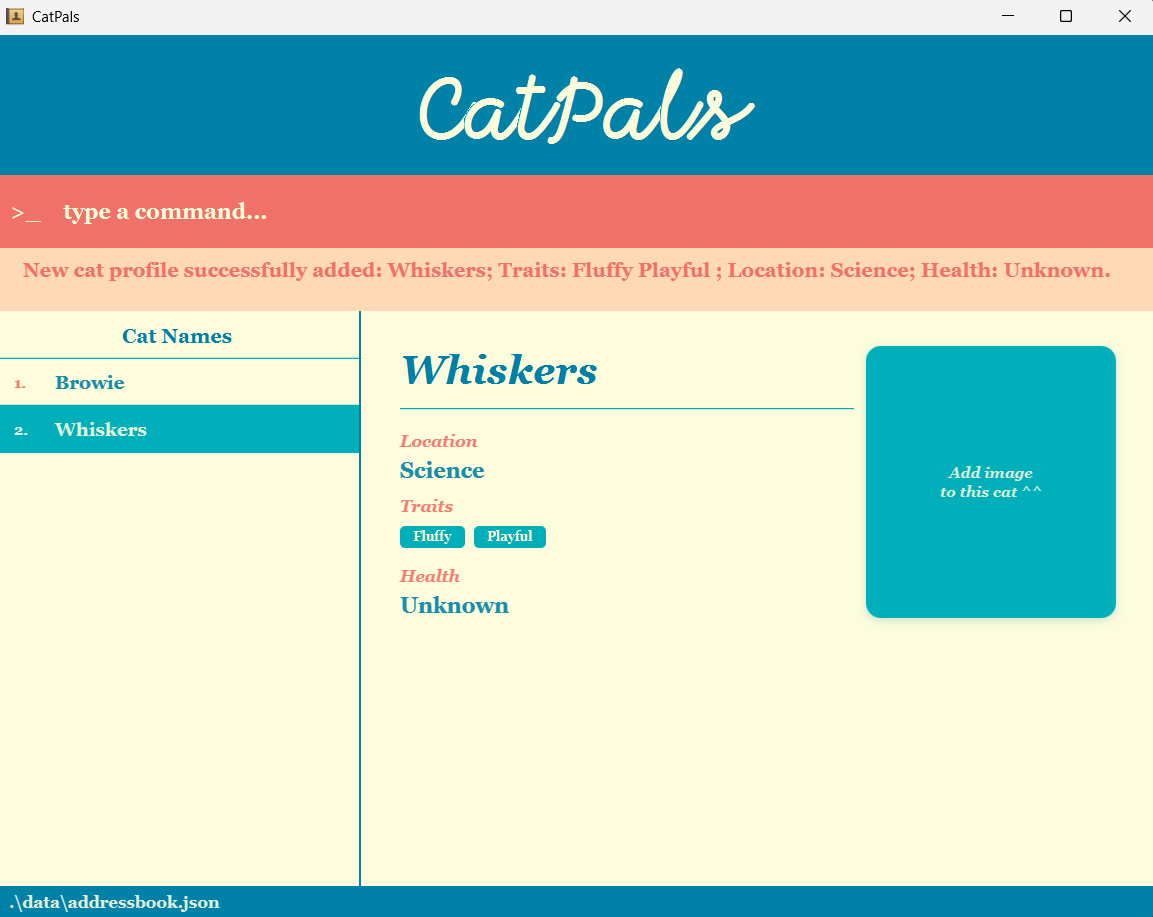
Running add n/Whiskers t/Fluffy t/Playful l/Science adds Whiskers to the cat list.
Attaching a cat photo: attach
CatPals can display a photo on each cat’s card. Photos are loaded from image files stored on your computer.
Folder setup
Your CatPals folder must be structured as follows:
CatPals/
├── catpals.jar
├── data/
│   └── addressbook.json
└── images/
    ├── bowie.png
    └── whiskers.jpg
- Inside your
CatPalsfolder (the same folder that containscatpals.jar), create a subfolder namedimages. - Copy your cat photos into the
imagesfolder.
Naming your image files
- Use simple filenames with no spaces, e.g. prefer
snowy_cat.jpgoversnowy cat.jpg. - Supported formats:
.png,.jpg,.jpeg. - Filenames are case-sensitive on Linux and macOS because those operating systems treat
Bowie.pngandbowie.pngas two different files. On Windows, filenames are not case-sensitive, but it is good practice to match capitalisation anyway to keep things consistent across computers.
iPhone / HEIC photos: Photos taken on an iPhone are often saved in HEIC format (.heic), which CatPals does not support. Before using an iPhone photo, convert it to .jpg or .png first. You can do this by opening the photo on a Windows PC and using Photos > Save as, or on a Mac by opening it in Preview and choosing File > Export and selecting JPEG or PNG.
Option 1 — Auto-detection (recommended)
Name the image file exactly after the cat (same capitalisation as the name in CatPals), place it in the images/ folder, and CatPals will pick it up automatically — no command needed.
| Cat name in CatPals | File to place inimages/
|
|---|---|
Bowie |
Bowie.png or bowie.png
|
Snowy |
Snowy.jpg or snowy.jpg
|
CatPals tries the original capitalisation first, then lowercase, for .png, .jpg, and .jpeg.
Option 2 — Manual path with attach (for custom filenames)
Use the attach command to explicitly set any image path for a cat:
Format: attach INDEX IMAGE_PATH or attach CAT_NAME IMAGE_PATH
attach 1 images/my_cat_photo.png
attach Bowie images/bowie.png
 Caution:
CatPals must be launched from the command window inside your
Caution:
CatPals must be launched from the command window inside your CatPals folder (i.e. using java -jar catpals.jar) for relative image paths to work correctly. Double-clicking the .jar file may cause images not to load.
If the image file cannot be found at the given path, the cat’s card will simply show no photo, while the rest of the data is unaffected.
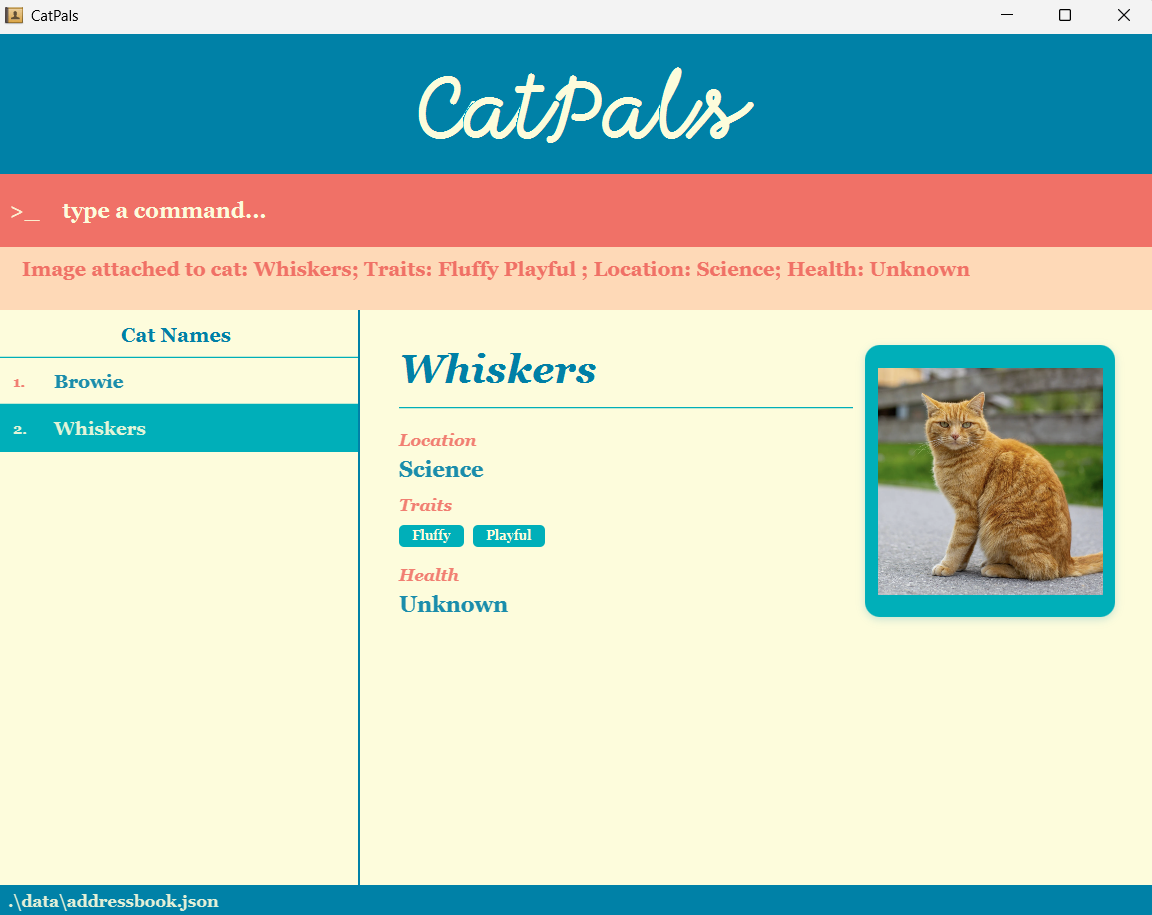
Running attach Whiskers images/Whiskers.png links a custom photo to Whisker's profile.
Listing all cats: list
Shows a list of all cats in the app.
 By default, CatPals displays your list of cats in the left panel. You can use the keyboard up arrow
  or down arrow
  to browse through your cats.
Format: list
Updating a cat profile : update
Updates an existing cat in the app.
Format: update INDEX [n/NAME] [t/TRAIT]… [l/LOCATION] [h/HEALTH_STATUS] or update CURRENT_NAME [n/NAME] [t/TRAIT]… [l/LOCATION] [h/HEALTH_STATUS]
| Parameter | Prefix | Description |
|---|---|---|
| Name | n/ | Updates the cat’s name |
| Trait(s) | t/ | Updates the cat’s traits (up to 3, no duplicates). Uset/ alone to clear all traits |
| Location | l/ | Updates the cat’s location |
| Health Status | h/ | Updates the cat’s health status |
- Updates the cat at the specified
INDEXorCURRENT_NAME. The index refers to the index number shown in the displayed cat list. The index must be a positive integer 1, 2, 3, … - At least one field must be provided.
- Existing values will be updated to the input values; fields not specified are kept unchanged.
- To change a cat’s photo, use the
attachcommand instead.
Examples:
-
update 1 n/Brownie t/Brown— Updates the name and trait of the 1st cat. -
update Browie n/Brownie t/Brown— Updates the name of the cat with current nameBrowietoBrownie. -
update 2 h/Vaccinated and Neutered— Updates the health status of the 2nd cat.
Before any changes are applied, CatPals will show a confirmation dialog. Press Enter to confirm or Esc to cancel.
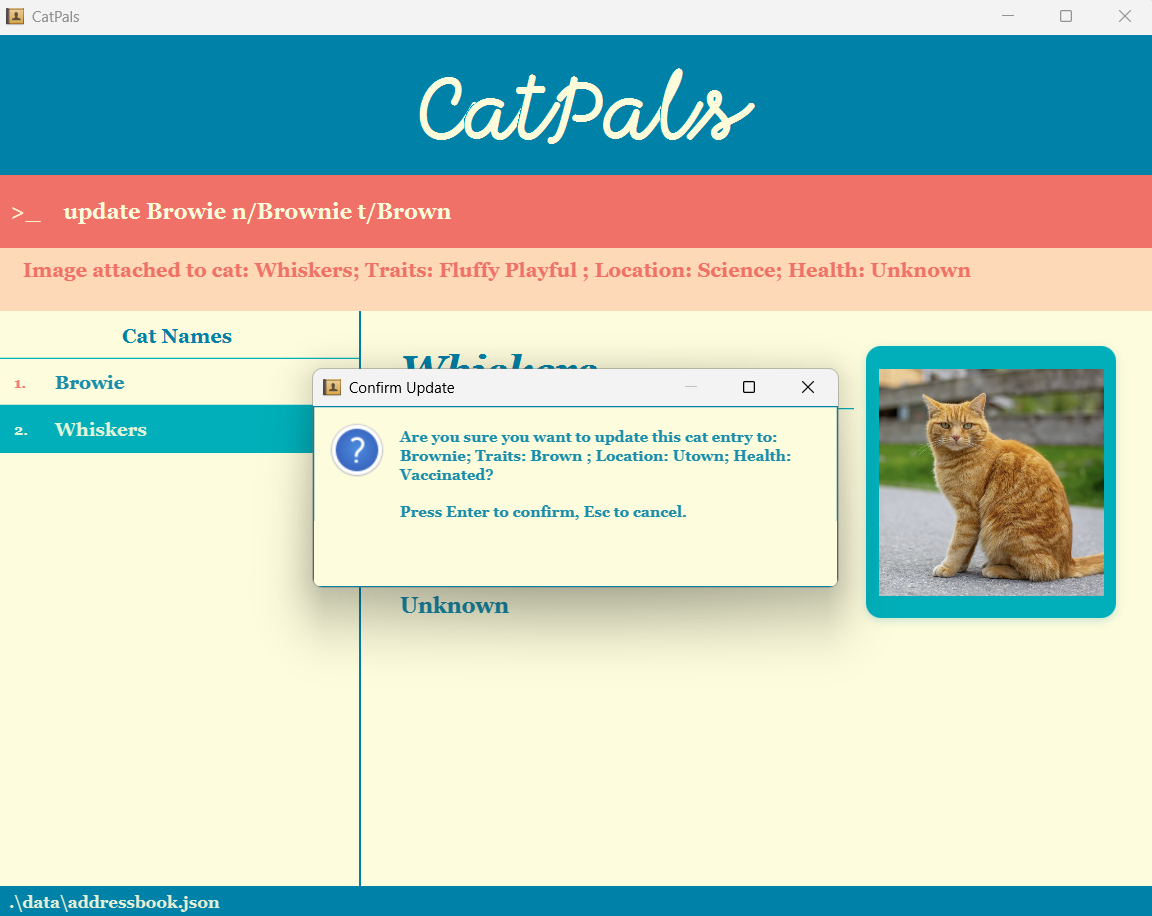
CatPals asks for confirmation before applying any changes.
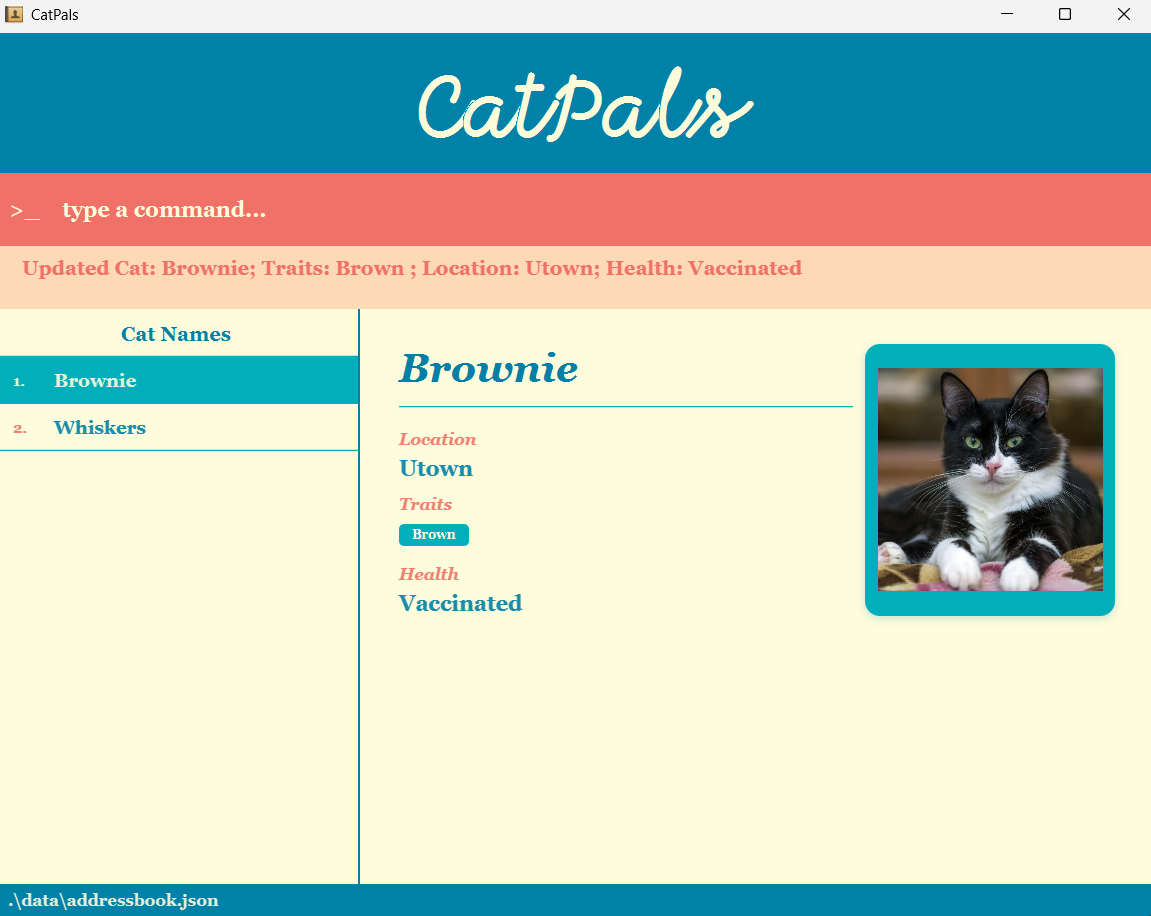
After confirming, the cat formerly named Browie is updated to Brownie
Locating cats by name, location, traits or health status : find
The find command lets you quickly filter the CatPals database. You can search for cats by Name, Location, Traits, or Health Status.
Format: find n/CAT_NAME, find l/LOCATION, find t/TRAIT, or find h/HEALTH_STATUS
How it works:
- The search is case-sensitive. For example,
snowywill NOT matchSnowy. This is intentional: since many cats may have similar names, exact capitalisation matching helps you narrow results to the cat you actually mean. - The order of the keywords does not matter. For example,
Snowy Whitewill matchWhite Snowy. - Cats matching at least one keyword will be returned (i.e.
ORsearch).- e.g.
find n/Hans n/Bowill returnHans Gruber,Bo Yang
- e.g.
- Search terms cannot contain symbols.
Examples:
| Category | Prefix | Example Command | Expected Result |
|---|---|---|---|
| Name | n/ | find n/Snowy | Shows cats with the wordSnowy in their name |
| Location | l/ | find l/COM3 | Shows all cats that are atCOM3
|
| Traits | t/ | find t/Striped | Shows all cats that have the traitStriped
|
| Health Status | h/ | find h/healthy | Shows all cats that are tagged ashealthy
|
More examples: find t/Friendly t/Playful (either trait), find n/Alex n/Li (either keyword in the name field), find l/COM3 t/Fluffy (location and trait).
Caution:
Ensure there is an identifier flag before each keyword if multiple are used. For example, use t/friendly t/white,
not t/friendly white.
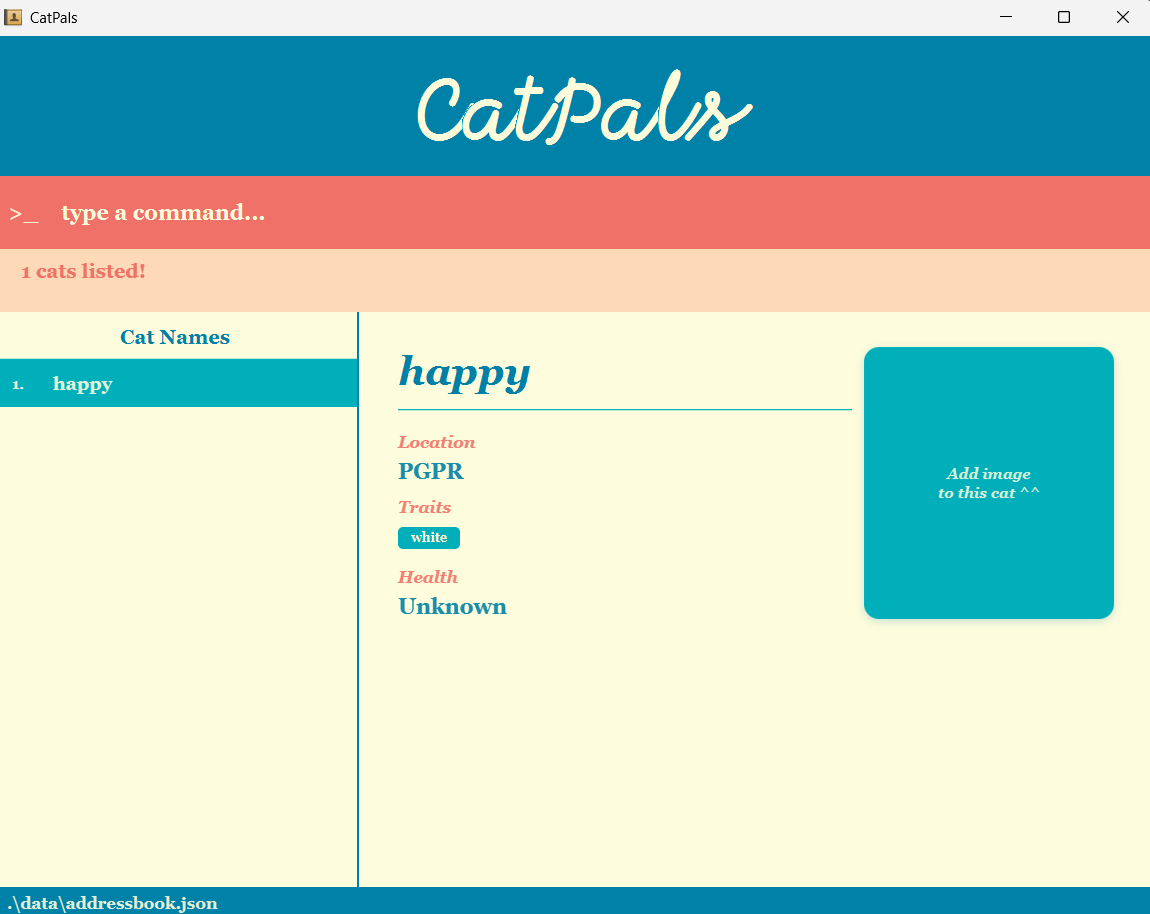
Running find n/happy shows cats named happy.
Deleting a cat : delete
Deletes the specified cat from the list.
Format: delete INDEX or delete NAME
- Deletes the cat at the specified
INDEXor with the specific nameNAME. - The index refers to the index number shown in the displayed cat list.
- The index must be a positive integer 1, 2, 3, …
Examples:
-
listfollowed bydelete 2deletes the 2nd cat in the current list. -
find Betsyfollowed bydelete 1deletes the 1st cat in the results of thefindcommand. -
delete Browniedeletes the cat with the specific name “Brownie”.
Before the cat is removed, CatPals will show a confirmation dialog. Press Enter to confirm or Esc to cancel.
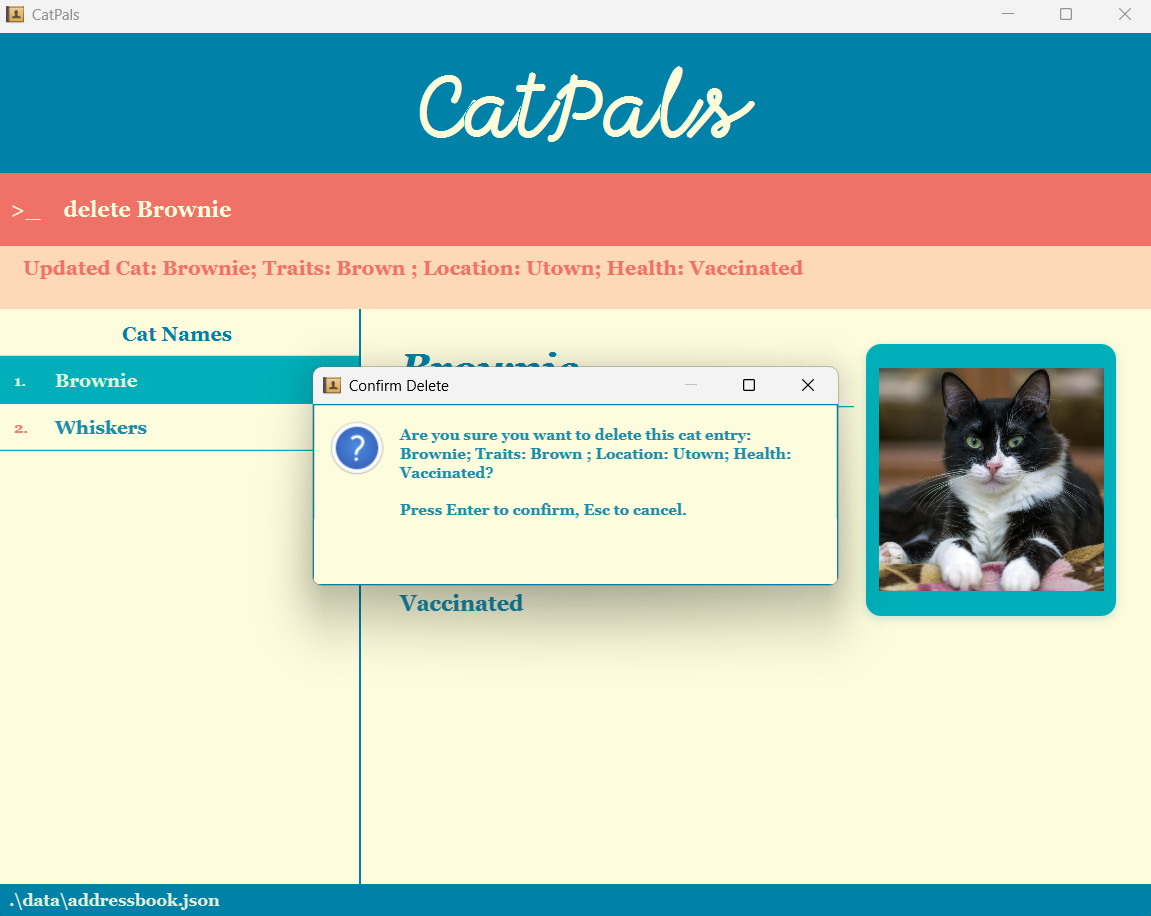
CatPals asks for confirmation before deleting the cat.
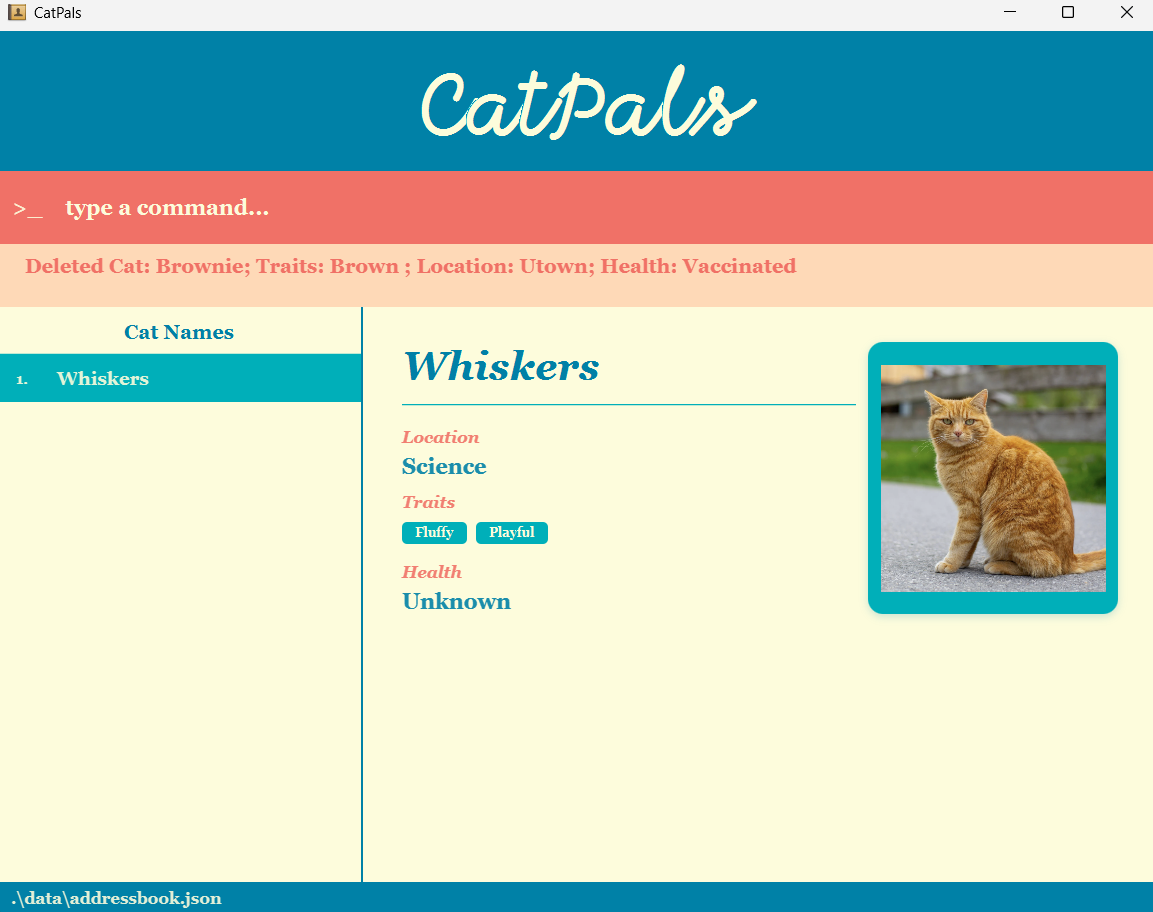
After confirming, Brownie is removed from the list.
Exporting the cat list : export
Exports the currently displayed cat list to export.html in your CatPals folder. Open it in any browser to view a formatted list with cat photos.
Format: export
- Exports whatever is currently shown. Use
findfirst to export a filtered subset, orlistto export everything. - The file is saved as
export.htmlin the same folder ascatpals.jar. - Images are embedded using the same paths stored in the app, so they appear correctly as long as the
images/folder is in the same location.
Examples:
-
listfollowed byexport— exports all cats. -
find l/Utownfollowed byexport— exports only cats located at Utown.
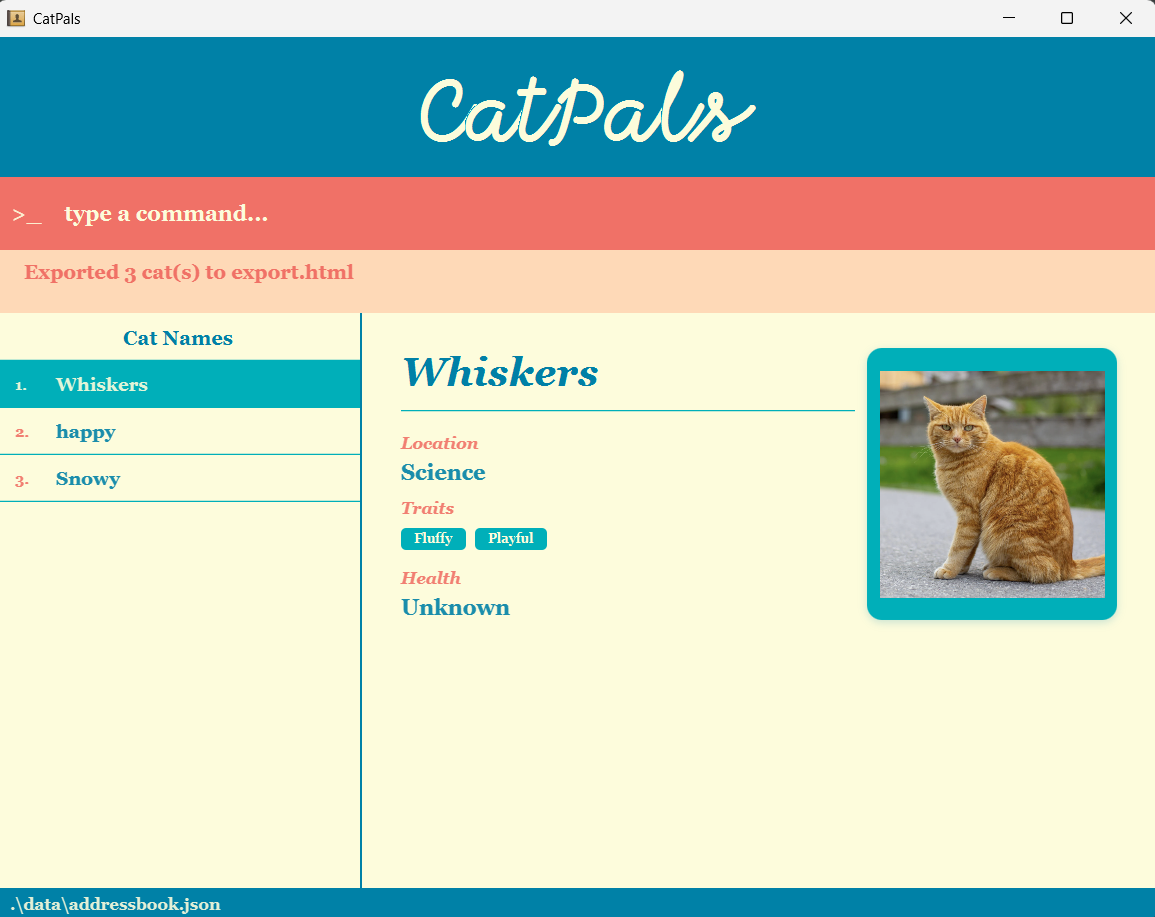
Running export saves a list of cats to export.html.
Clearing all entries : clear
Clears all entries from the app.
Format: clear
Because this action permanently removes all your cat data, CatPals will show a confirmation dialog before proceeding. Press Enter to confirm or Esc to cancel.
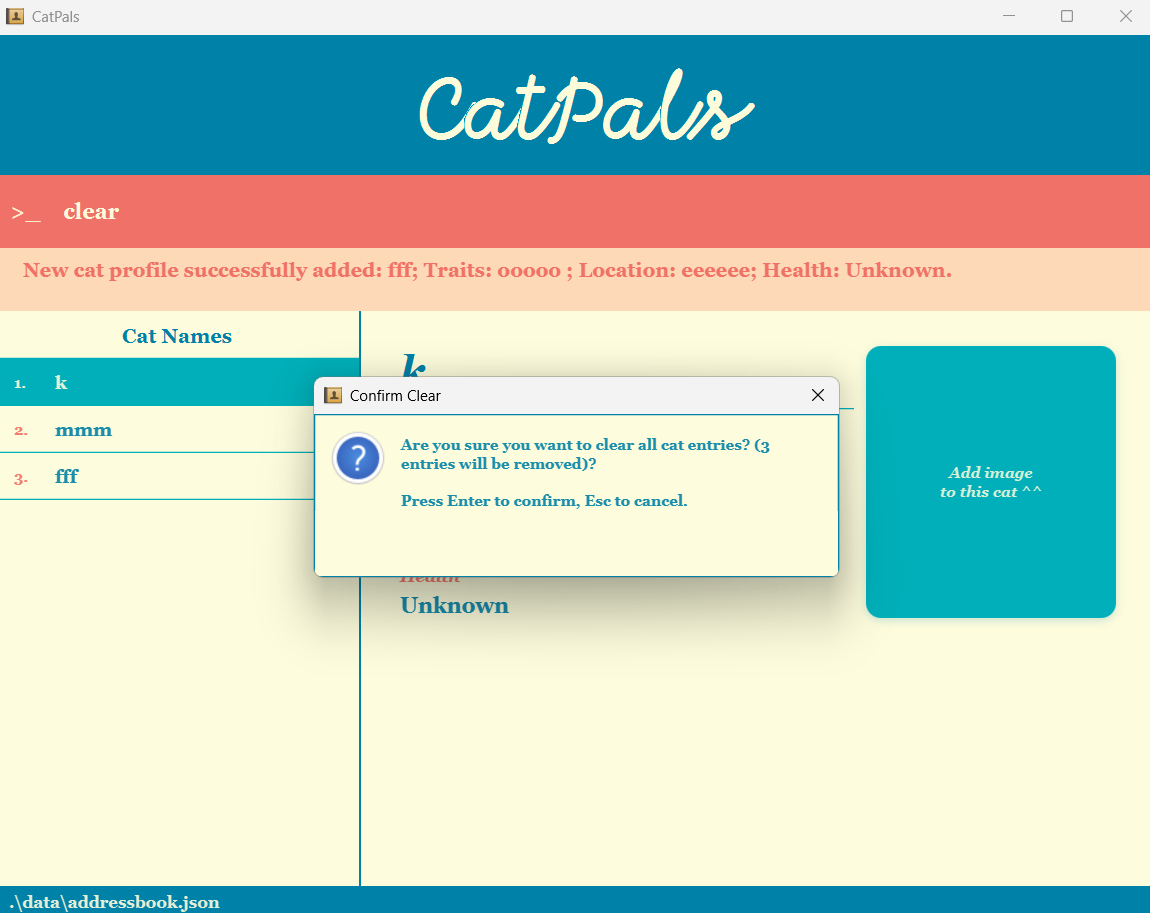
CatPals asks for confirmation before clearing all entries.
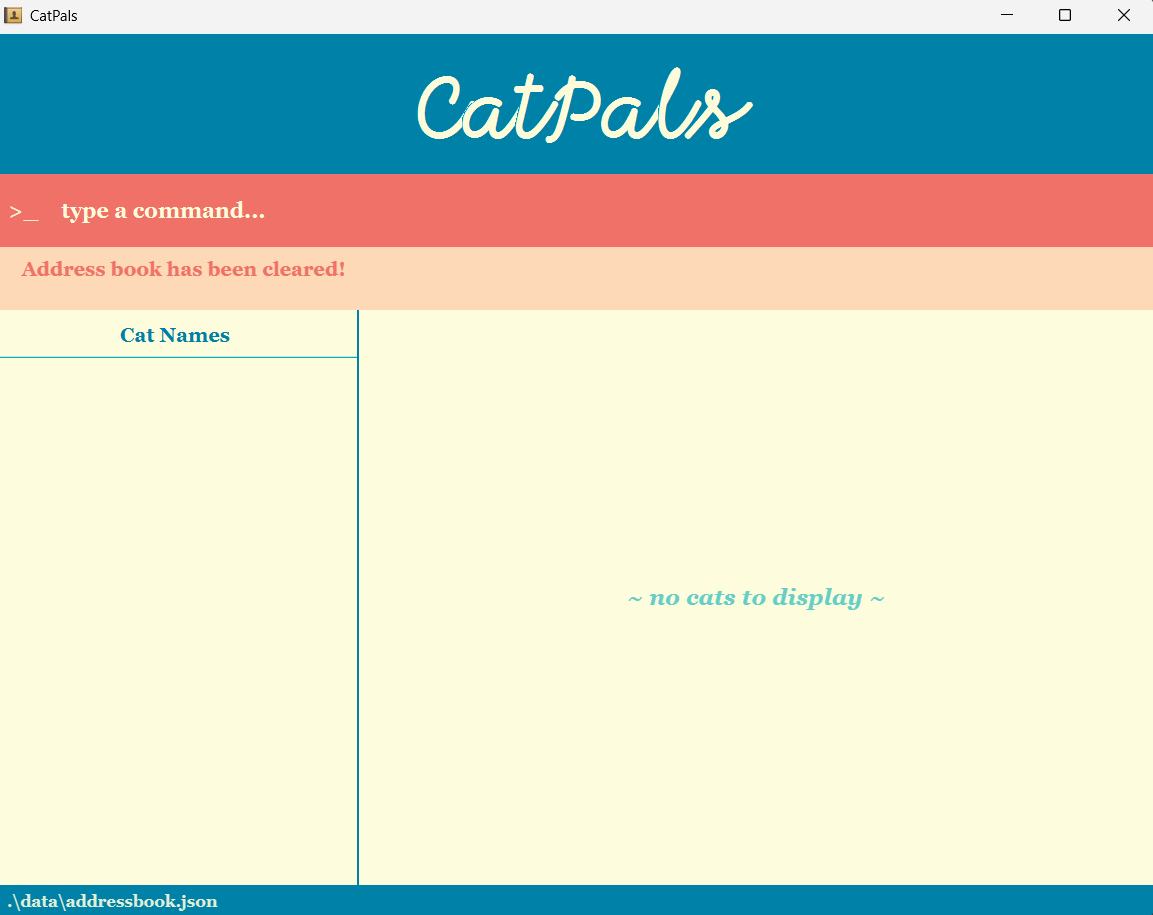
After confirming, all cat entries are removed and the list is empty.
Undo the previous action : undo
Reverses one data-changing step: the last command that actually modified the notebook.
Format: undo
| Recent command | What undo does |
|---|---|
add |
Removes that cat |
delete |
Puts that cat back |
update |
Restores previous fields |
attach |
Removes the last attached photo (and its copied file where applicable) |
help, list, find
|
No change (read-only) |
export, clear
|
No change — not undoable; cleared data cannot be recovered with undo
|
undo again |
No effect |
Rules: Only one level of undo is supported. Exported files stay on disk even if you undo another command afterward.
Exiting the program : exit
Exits the program.
Format: exit
Saving the data
CatPals saves your data to disk automatically after any command that changes it. You do not need a separate Save action.
Editing the data file
Data is stored as JSON at [folder containing catpals.jar]/data/addressbook.json. Advanced users may edit this file directly; everyone else can ignore it.
Caution:
Invalid JSON or unsupported values can make CatPals drop all data and start empty on the next launch. Back up addressbook.json before editing. Only edit the file if you know the expected format.
Archiving data files [coming in v2.0]
Details coming soon …
FAQ
Q: How do I move CatPals to another computer?
A: Install Java 17+ on the new machine. Copy your whole CatPals folder (the .jar, the data folder, and optionally images). On the new computer, open a command window in that folder and run java -jar catpals.jar as usual.
Q: The app says it needs Java / java is not recognised.
A: Install JDK 17 or newer (e.g. from Adoptium). Close and reopen your command window, then run java -version. You must see 17 or higher.
Q: Double-clicking the .jar does nothing or errors.
A: Open a command window, navigate to the folder with catpals.jar, then run java -jar catpals.jar. This is the supported way to launch the app and also ensures that relative paths for attach and photos work correctly.
Q: I’m stuck on the yellow welcome screen. A: Press the Space bar once to enter the main window.
Q: Where is my data stored?
A: In data/addressbook.json next to catpals.jar. Back up that file if you care about your records.
Q: A command failed or said invalid format.
A: Check spelling and prefixes (n/, l/, t/, h/). Use help for an overview. See the Features section for exact formats.
Q: Cat photos do not show / attach cannot find the file.
A: Put images under an images folder beside the .jar, use paths relative to where you run the app, and launch with java -jar from that folder (see Attaching a cat photo). If your photo is from an iPhone, convert it from HEIC to JPG or PNG first.
Q: Can I use CatPals on my phone? A: No. It is a desktop Java application for Windows, macOS, or Linux.
Q: Does CatPals send my data online? A: No. Everything stays in local files on your computer unless you copy or export them yourself.
Known issues
-
When using multiple screens, if you move the application to a secondary screen, and later switch to using only the primary screen, the GUI will open off-screen. The remedy is to delete the
preferences.jsonfile created by the application before running the application again. -
If you minimise the Help Window and then run the
helpcommand (or use theHelpmenu, or the keyboard shortcutF1) again, the original Help Window will remain minimised, and no new Help Window will appear. The remedy is to manually restore the minimised Help Window. -
If you launch CatPals by double-clicking the
.jarfile, cat photos may fail to load even if theimages/folder is set up correctly. This happens because the working directory may not be set to the CatPals folder when launching by double-click. Always launch usingjava -jar catpals.jarfrom a command window opened inside the CatPals folder.
Command summary
| Command | Format | Examples |
|---|---|---|
| Add a cat | add n/NAME t/TRAIT... l/LOCATION [h/HEALTH_STATUS] |
add n/Bowie t/Orange l/Utown h/Vaccinated |
| Attach a photo to a cat |
attach INDEX IMAGE_PATH or attach CAT_NAME IMAGE_PATH
|
attach 1 images/bowie.png or attach Bowie images/bowie.png
|
| Delete a cat by name or index |
delete CAT_NAME or delete CAT_NUMBER
|
delete Snowy or delete 3
|
| Update a cat by name or index | update NAME/INDEX [n/NAME] [t/TRAIT] [l/LOCATION] [h/HEALTH] |
update Snowy l/utown or update 3 l/PGPR
|
| Find cats |
find n/NAME or find l/LOCATION or find t/TRAIT or find h/HEALTH_STATUS
|
find n/Mochi or find t/Striped or find l/COM3 or find h/Sick
|
| Export the cat list to HTML | export |
export |
| Clear all cats | clear |
clear |
| List all cats | list |
list |
| Help | help |
help |
| Exit | exit |
exit |
| Undo | undo |
undo |
Thank you for using CatPals
We hope CatPals makes it a little easier to look after the cats on campus. Every record you keep helps volunteers stay informed and coordinate care more effectively.
If you run into a bug or have a suggestion, feel free to open an issue on our GitHub page. We would love to hear from you.
Happy cat-tracking!